Updating Manitoba Health Billing Items
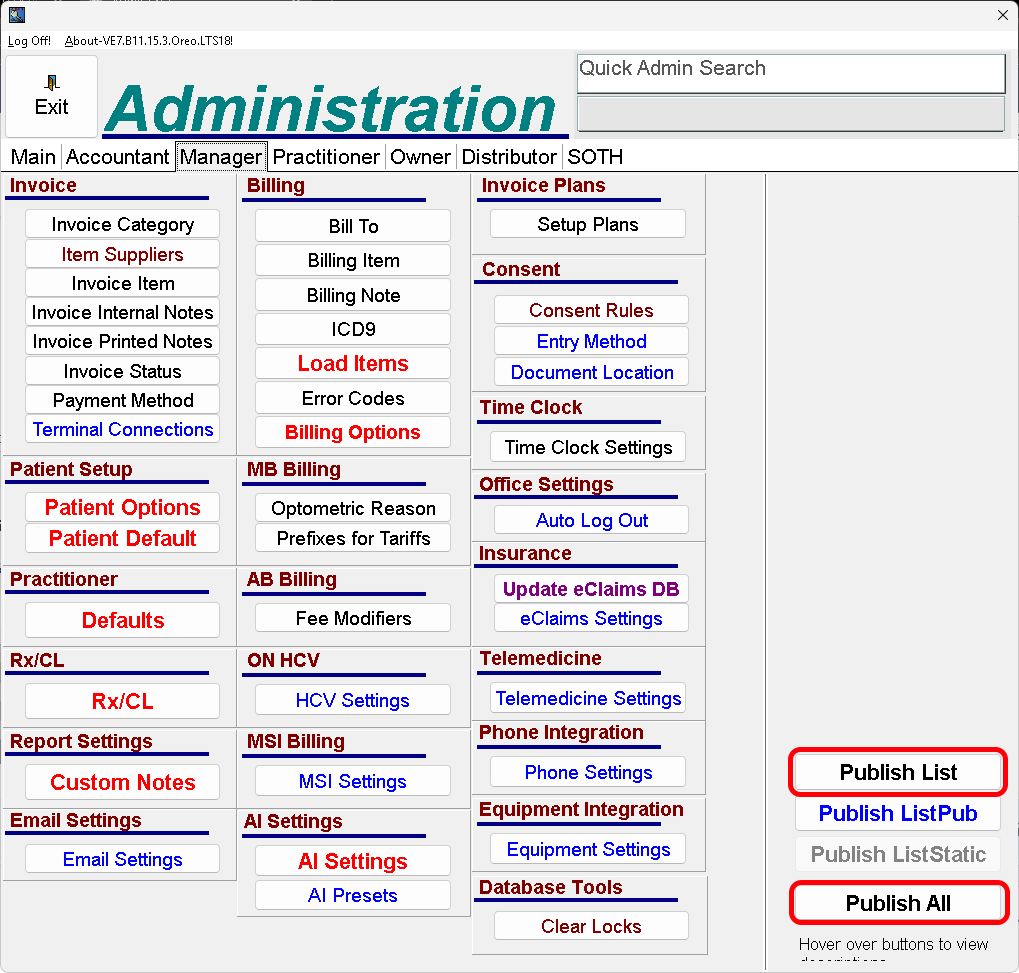
- Open VE Admin:

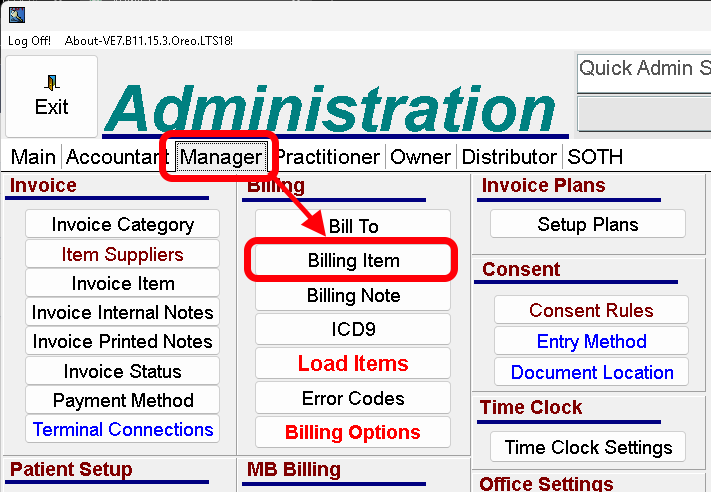
- Select the Manager tab in Admin, the select the Billing Item section:
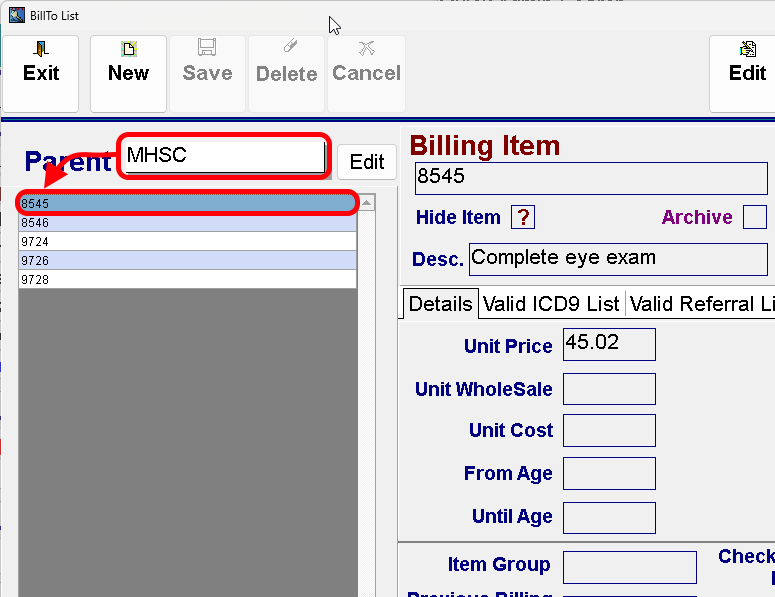
- Select the MHSC option in the Bill To dropdown, then select the item you wish to edit:
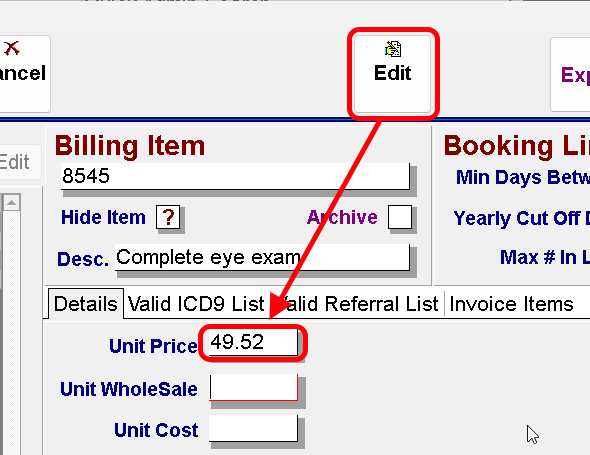
- Select the Edit button, then adjust the price by the appropriate amount for your region:
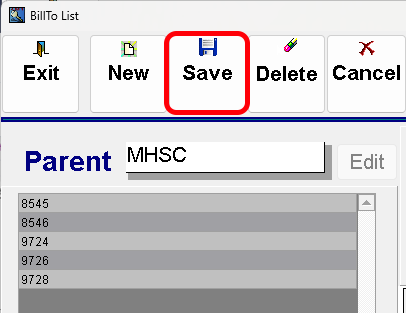
- Click Save, then exit the Billing Item screen once all items are updated and select Publish List / Publish All to update the settings:
Related Articles
Limiting billing by Date or Age
Added in three new fields into the Billing Items screen called Max Allowed, Min Days since and Max # in limit. Each works slightly differently and will show different warning/error messages. "Max allowed since" will prevent the user from entering in ...
Enabling Deletion Reason Prompt for Provincial Health Care Billings
Visual-Eyes provides a global setting to require users to enter a reason when deleting Provincial Health Care billings. Enabling this setting helps ensure accurate audit trails and standardized documentation across the practice. Prerequisites: Access ...
Updating Lens Markup and Recalculating Base Prices
Updating Lens Markup and Recalculating Base Prices This article provides step-by-step instructions for updating lens markup values and recalculating base prices in Visual-Eyes. Administrators can use these steps to ensure that supplier pricing ...
Set Default Printers for Visual-Eyes Printouts
Configuring default printers for various Visual-Eyes printouts streamlines workflow by allowing each document type, such as invoices, prescriptions, and day sheets, to automatically use a dedicated printer. This eliminates manual printer selection ...
Making Changes to your Referral Letters in Exam
If you are looking to make some changes to your Referral letters you can do so by following this guide. Step 1 Log into Exam Admin Step 2 click on Panel Export Text Step 3 In the Panel Drop Down list select Referral Letter, please leave Panel Group ...